This gives you the same perspective you would get from a physical lift inspection, so you can evaluate frame condition, rust, leaks, and suspension components from your desk.

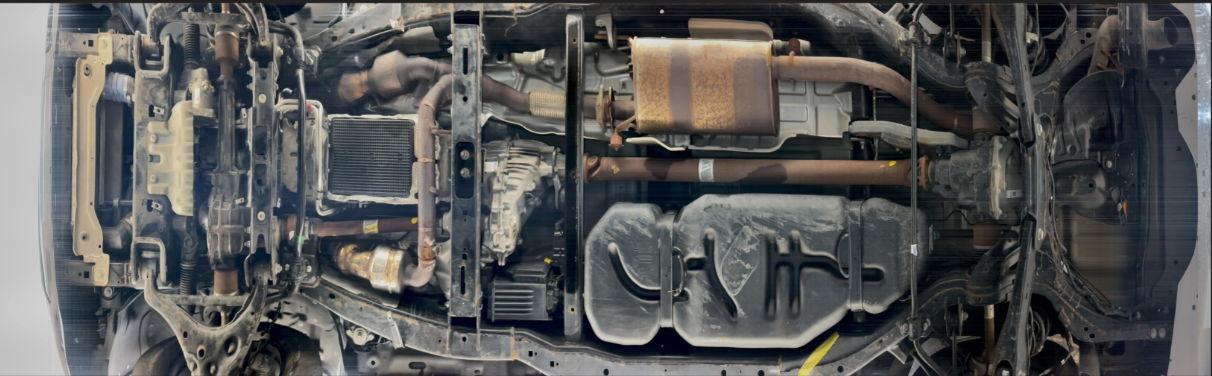
Virtual Lift captures the full undercarriage of the vehicle at the time of inspection. You can inspect the frame rails, exhaust, subframe, control arms, and other undercarriage components for corrosion, damage, or prior repairs. This feature is particularly valuable for buyers in regions where rust and road salt damage are common concerns.
No Virtual Lift section appears in the Condition Report. Virtual Lift is not available on every vehicle. Availability depends on the inspection type the seller ordered. If it is not listed, it was not captured for that vehicle.
Video will not play. Check your internet connection and try refreshing the page. If the issue continues, try the ACV mobile app or a different browser.
Need more help? Visit our Support Center or call 1-800-553-4070. Phone support is available Monday-Friday 9am-10pm ET and Saturday 9am-2pm ET.


