How to Browse the Marketplace

Support Center

/

How to Browse the Marketplace

 Log in to your account at app.acvauctions.com and select Marketplace from the top navigation.

Auction Listings (top bar)

  • The auction list defaults to Active auctions sorted by ending soonest. Use the tabs at the top to switch between:
    • All – every auction, regardless of status
    • Coming Soon – auctions not yet open for bidding
    • Active – live auctions currently accepting bids
    • Make Offer – unsold inventory from the past 7 days
    • Sold – completed auctions for reference
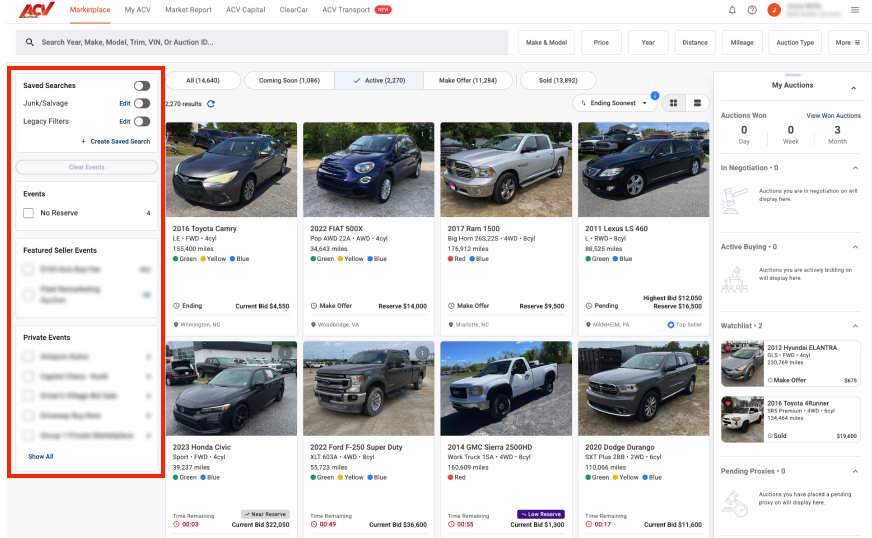
  • Each vehicle card shows the year, make, model, trim, drivetrain, mileage, condition indicators, location, time remaining, and current bid.
  • Select grid view or list view using the icons in the upper right to change how results are displayed.
  • Click any vehicle card to open its full Condition Report.

Filters, Saved Searches and Events (left side bar)

  • When you create a Saved Search they will be listed at the top
  • You will always have the No Reserve event
  • Any subscribed or invited events will show under Featured Seller Events and under Private Events

What to expect

The Marketplace refreshes in real time. Active auction countdowns are live. Use the refresh icon to manually reload the list at any time.

Need more help? Visit our Support Center or call 1-800-553-4070. Phone support is available Monday-Friday 9am-10pm ET and Saturday 9am-2pm ET.

Related articles