How to Filter and Search for Vehicles

May 6, 2026
Support Center

/

How to Filter and Search for Vehicles

Steps

  1. From the Marketplace, use the filter bar at the top to filter by:
  • Make & Model
  • Price (min/max)
  • Year (range)
  • Distance (radius from your dealership)
  • Mileage (max)
  • Auction Type
  • More (additional filters including condition, drivetrain, color, and more)
  1. Select the expansion arrow to open the full filter panel.
  2. Set your desired filters and select Done.
  1. Results update automatically based on your selections.
  2. To clear all active filters, select Clear.

Saving a search

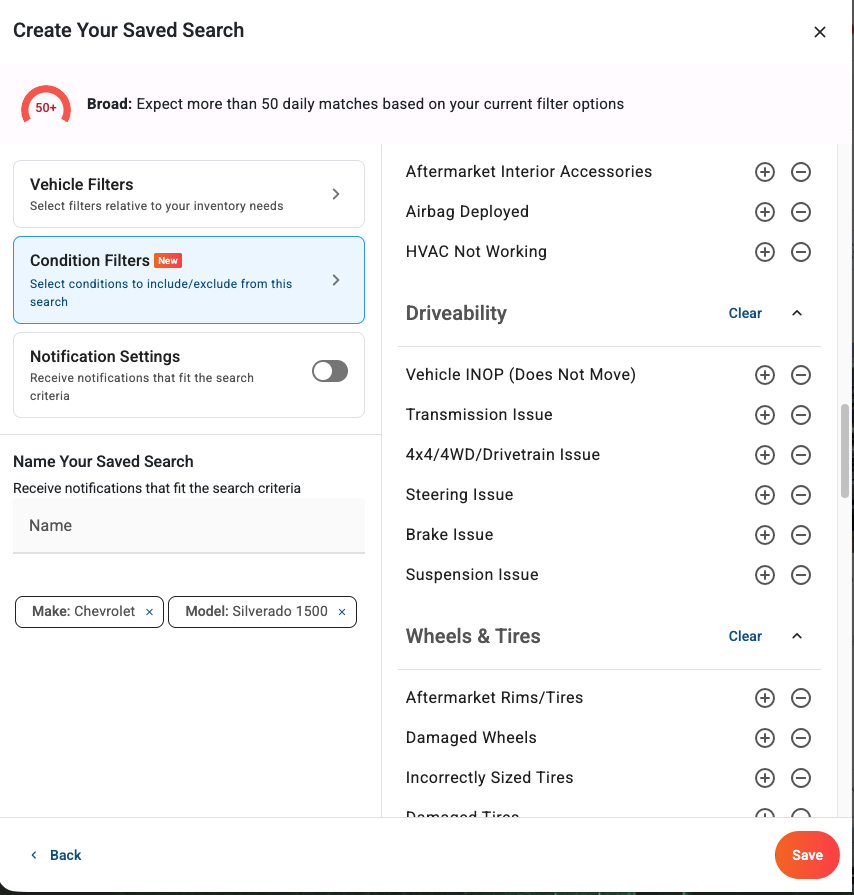
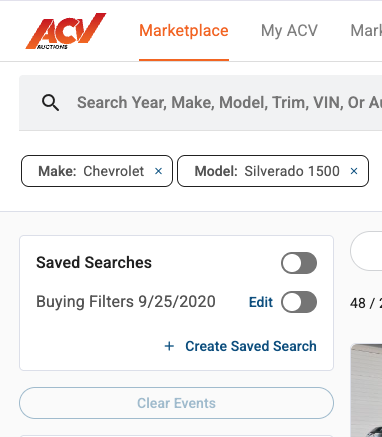
  1. After setting your filters, select Create Saved Search in the left sidebar.
    1. You can add even more filters such as the trim, price, year, and distance, etc
    2. Go through and apply Condition Filters in be included or excluded such as Exterior damage, Frame & Body Damage, Interior Damage, Drivability, etc.
  2. Toggle notifications on to receive alerts when matching vehicles are listed.
  3. Name your saved search
  4. Select Save Search.

Your saved searches appear in the left sidebar under Saved Searches and can be edited or deleted at any time.
What to expect

Saved searches run continuously. You will receive a notification when a vehicle matching your criteria is listed, even if you are not actively browsing.

Need more help? Visit our Support Center or call 1-800-553-4070. Phone support is available Monday-Friday 9am-10pm ET and Saturday 9am-2pm ET.

Related articles