This keeps your feed focused on inventory that is relevant to your dealership.

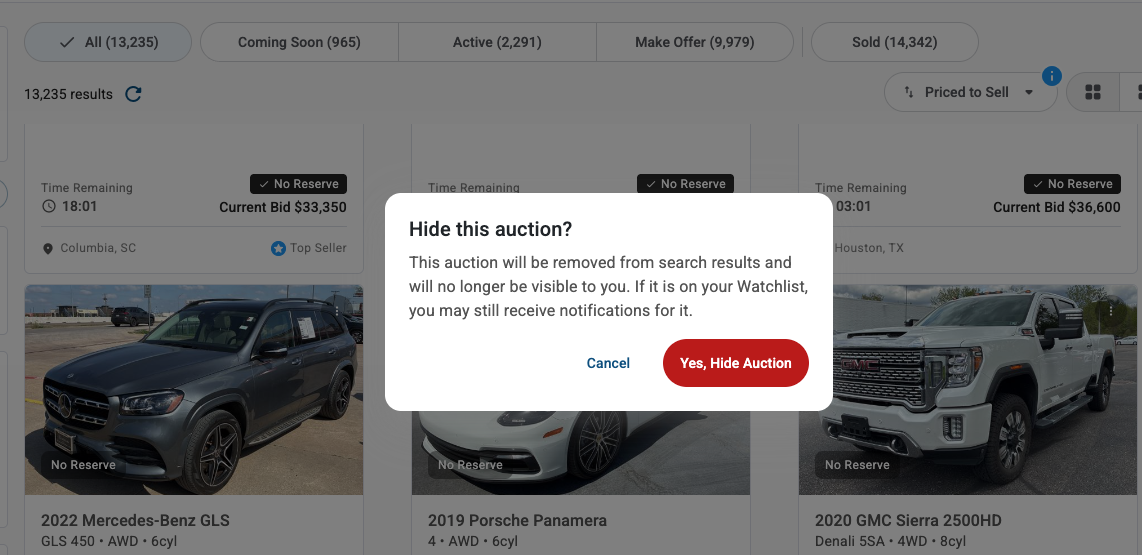
Once you hide a vehicle, it will no longer appear in your Marketplace results. This applies to your account only and does not affect other users. Hiding a vehicle does not prevent you from searching for it directly if you choose to find it later.
At this time, there isn’t a way to unhide a vehicle or retrieve a list of hidden vehicles.
The Hide Auction button does not appear. Make sure you are viewing the Marketplace in list or card view. Some display modes may not show all vehicle card actions. Try switching your view layout.
A hidden vehicle still appears in search results. Hidden vehicles are filtered from your standard feed but may still appear when you search directly for a specific VIN or listing. This is expected behavior.
Need more help? Visit our Support Center or call 1-800-553-4070. Phone support is available Monday-Friday 9am-10pm ET and Saturday 9am-2pm ET.


