How to Save a Vehicle to Your Watchlist

May 6, 2026
Support Center

/

How to Save a Vehicle to Your Watchlist

Steps

  1. From the Marketplace, hover over the vehicle photo on a vehicle card.
  2. Select the heart icon (favorite_border) in the upper left corner of the photo.
  3. The icon fills to indicate the vehicle has been saved.

Alternatively, from inside a vehicle’s Condition Report:
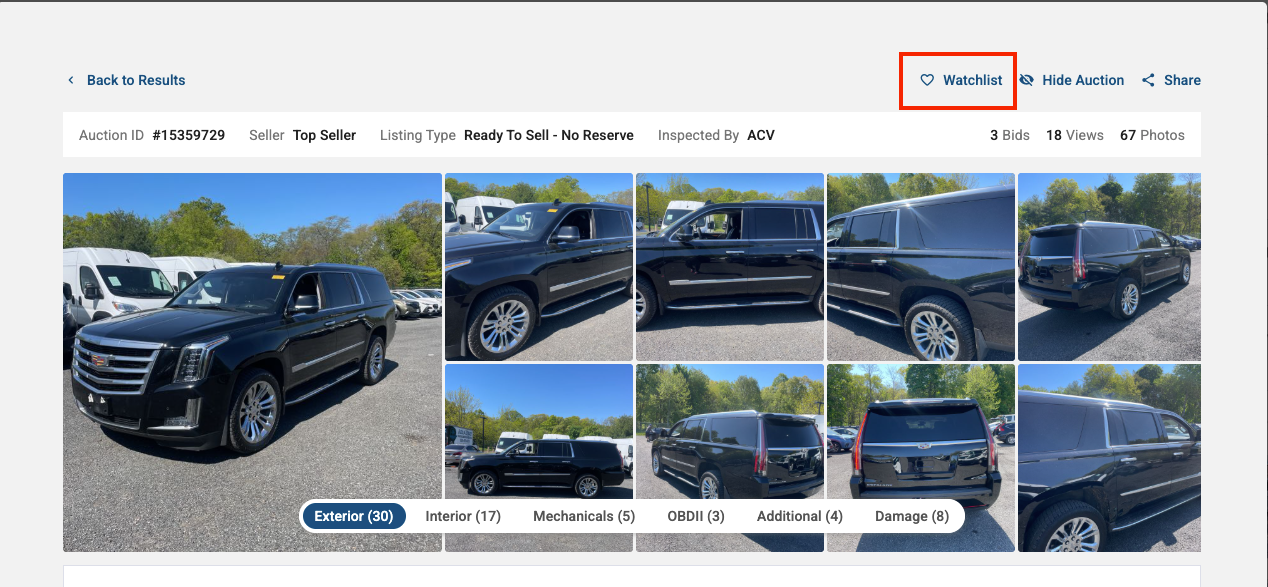
  1. Select Add to Watchlist near the top of the page.

Viewing your Watchlist

Your watchlisted vehicles are accessible from My ACV > Saved in the left sidebar of the Marketplace. From there you can place bids, set proxy bids, or remove vehicles.

Removing a vehicle from your Watchlist

  1. From the vehicle card or Condition Report, select the filled heart icon to toggle it off.
  2. A confirmation prompt will appear. Select Yes, Remove It to confirm.

What to expect

Watchlisted vehicles appear with a filled heart icon anywhere they appear in the Marketplace. You will not receive automatic notifications for watchlisted vehicles unless you also set a Saved Search that matches the vehicle.

Need more help? Visit our Support Center or call 1-800-553-4070. Phone support is available Monday-Friday 9am-10pm ET and Saturday 9am-2pm ET.

Related articles