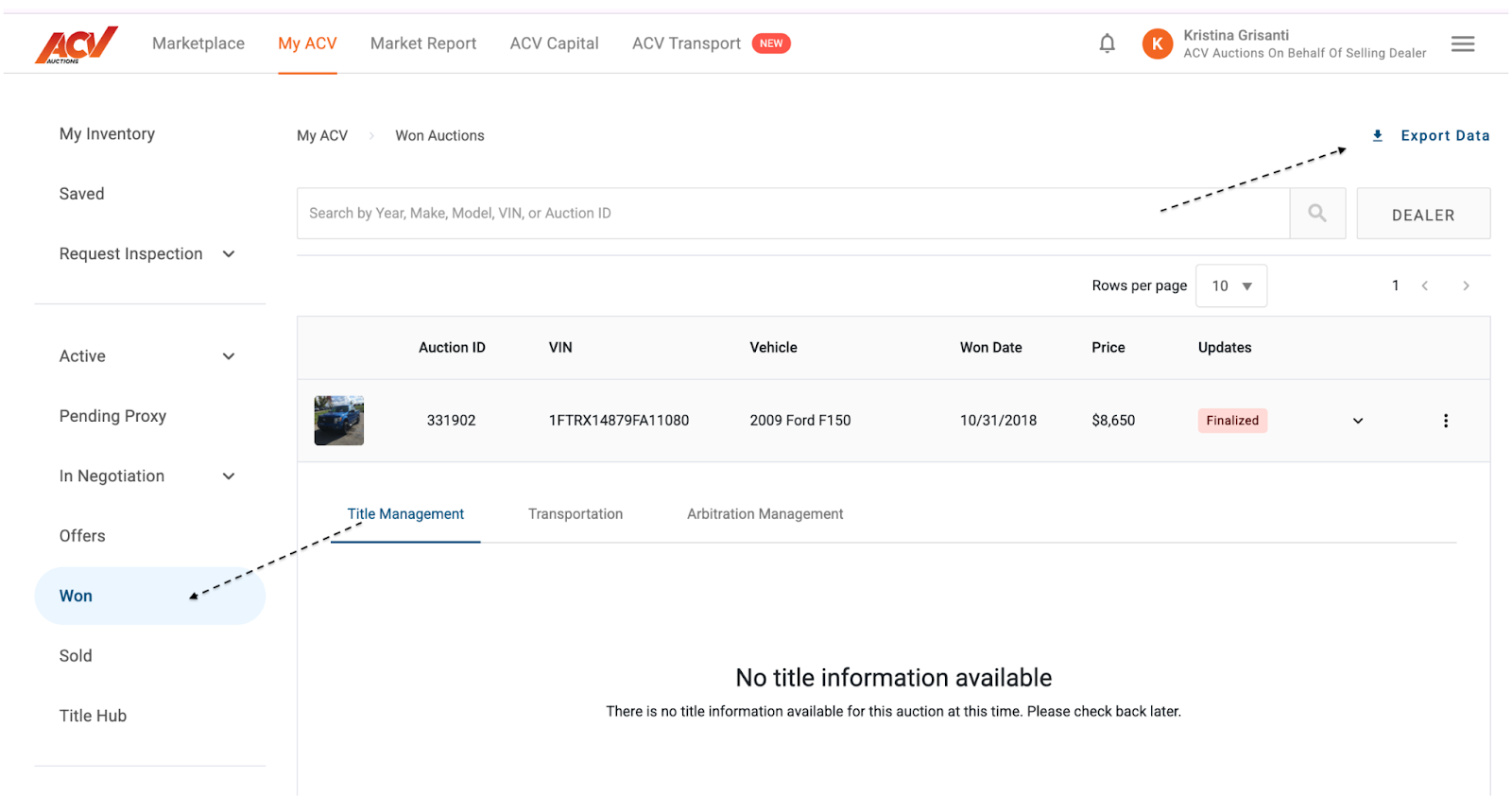
Once you are logged into your account, up at the top of the screen click “MyACV” then click the “Won” or “Sold” tab on the left hand side of the screen.
From there go over to the right hand of the screen and click “Export Data”
Enter the date and required information and select confirm, the purchase history will then generate a report
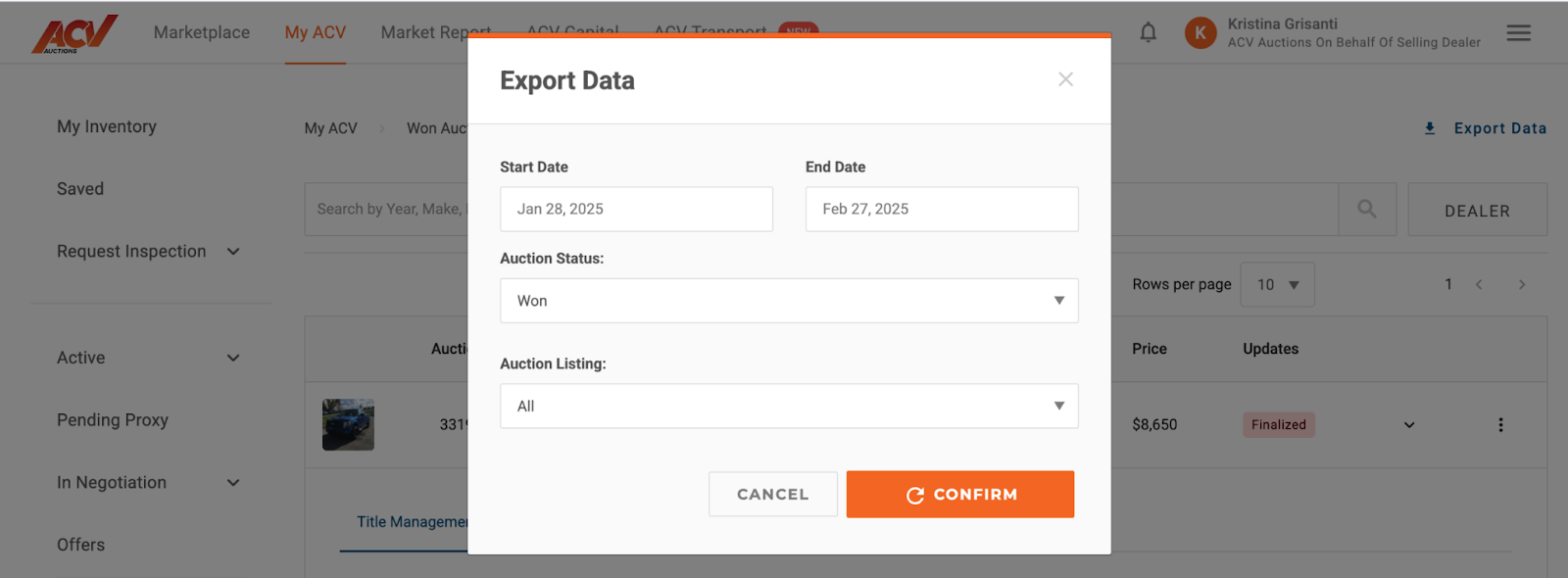
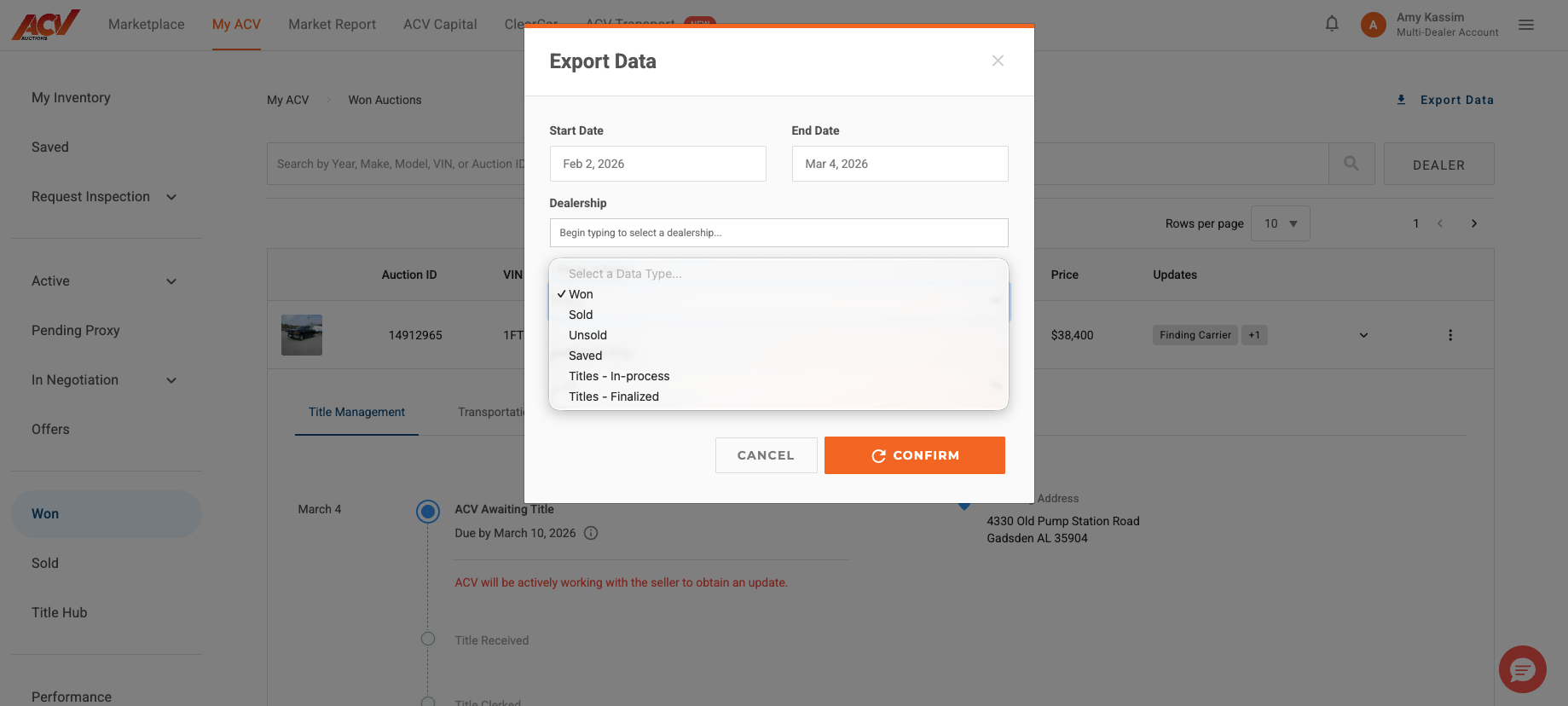
After clicking “Export Data” a list will appear for you to choose if the data you are exporting are Won or Sold deals. This option will be available if you started with clicking the “Won Tab” or the “Sold” tab upon logging in to your MyACV account.
There are other options for what data you can download as well, shown below:
Q&As:
Q: In what format will the report be generated?
A: Most commonly, these types of reports are generated in a spreadsheet format, such as CSV (Comma Separated Values) or Excel (.xlsx). This allows for easy viewing, sorting, and further analysis of the data using spreadsheet software.
Q: What information is included in these purchase and sale history reports?
A: While the exact columns may vary, a typical report will include key details such as:
💬 Chat with us in MyACV!


